Two-Factor vs Two-Step Verification: What’s the Difference?
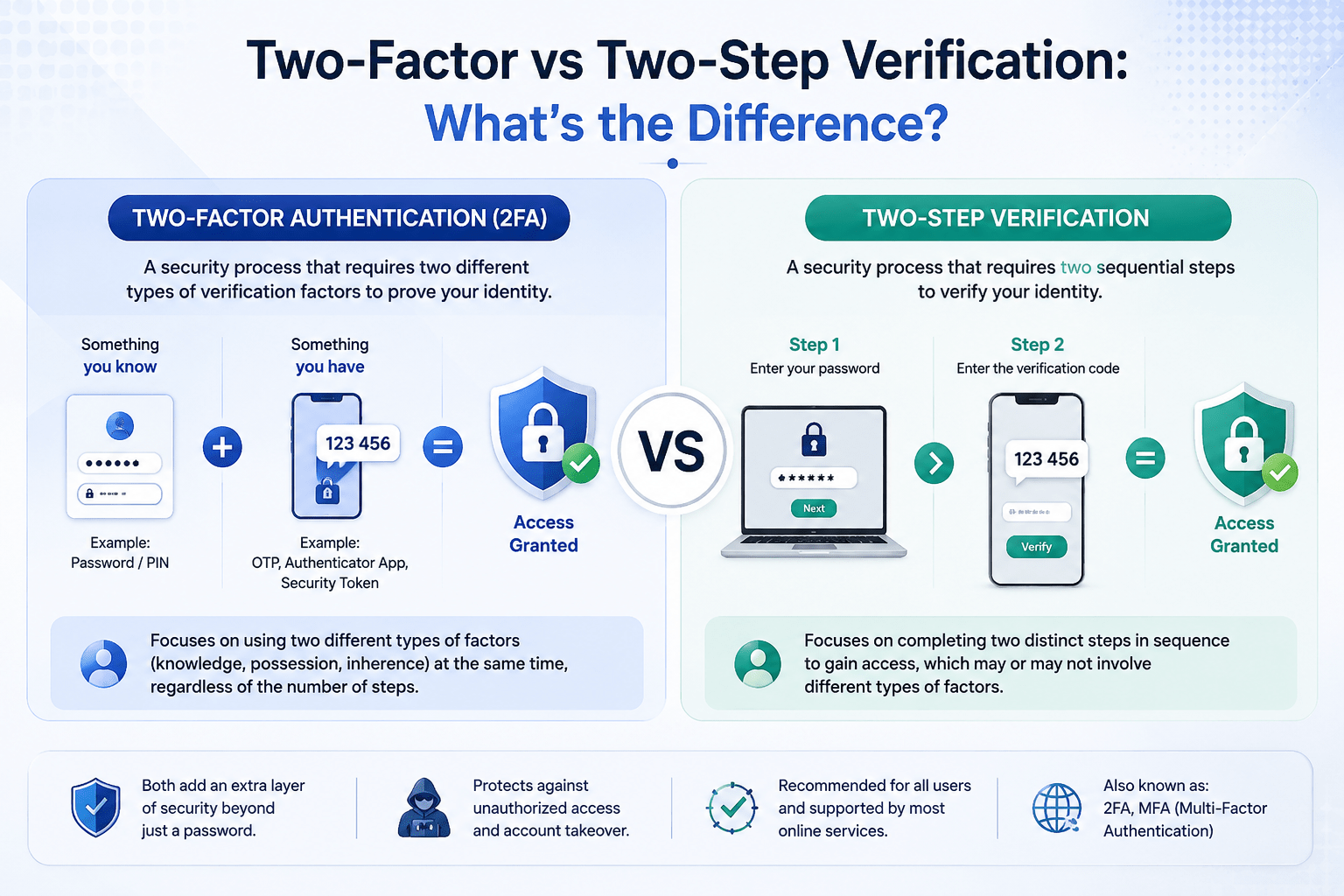
Two-Factor vs Two-Step Verification: What’s the Difference?
Passwords get stolen every day — through phishing, data breaches, and brute-force attacks. Adding a second layer of protection is no longer optional. But not all second layers are equal.
Two-factor authentication (2FA) and two-step verification are often used interchangeably, but they work very differently. Understanding the distinction helps you choose the right protection for your accounts.
What Is Two-Step Verification?
Two-step verification requires two separate actions to confirm your identity. You enter your password, then complete a second step — usually a code sent to your phone or email.
The catch: both steps can belong to the same security category. A password and an SMS code are both things you “know” or “possess” temporarily. There’s no mixing of fundamentally different identity types.
Common examples:
- Password + SMS code
- Password + emailed verification link
- Password + security question
This adds friction for attackers, but it has a critical weakness — if someone intercepts your SMS message or tricks you with a fake login page, they’ve beaten both steps at once.
What Is Two-Factor Authentication (2FA)?
Two-factor authentication requires two steps from two different security categories:
- Knowledge — something you know (password, PIN)
- Possession — something you have (hardware key, authenticator app)
Because these categories are fundamentally different, compromising one doesn’t compromise the other. A hacker who steals your password still can’t replicate your fingerprint or physically hold your security key.
Common examples:
- Password + fingerprint scan (Face ID or Touch ID)
- Password + hardware security key (like a YubiKey)
- Password + authenticator app code (Google Authenticator, Authy)
Two-Factor vs Two-Step: The Core Difference
| Feature | Two-Step Verification | Two-Factor Authentication |
|---|---|---|
| Security categories used | Often just one | Always two distinct categories |
| Example | Password + SMS code | Password + fingerprint |
| Vulnerable to SIM swapping | Yes | No (with hardware key or biometrics) |
| Vulnerable to phishing | Yes | Much harder to exploit |
| Setup difficulty | Very easy | Easy–moderate |
| Best for | Low-stakes accounts | Email, banking, financial accounts |
The key point: all two-factor authentication is two-step, but not all two-step is two-factor. The term “2FA” gets misused often — SMS codes are frequently labeled as 2FA, but they’re technically two-step verification.
Why SMS Codes Are Weaker Than They Seem
Text message codes feel secure, but attackers have reliable ways around them:
SIM swapping — A criminal contacts your carrier, impersonates you, and transfers your number to their SIM card. Your texts now go to them.
Phishing — Fake login pages capture both your password and the SMS code you enter in real time, passing them to the attacker simultaneously.
SS7 vulnerabilities — Telecom network flaws allow sophisticated attackers to intercept SMS messages without touching your phone.
None of these attacks work against a physical hardware security key or biometric authentication. That’s the real advantage of true two-factor authentication.
Which Method Should You Use?
Use two-step verification (SMS or email codes) when:
- The account holds low-sensitivity data
- The platform doesn’t support stronger options
- You’re helping a less tech-savvy user set up basic protection quickly
Use two-factor authentication when:
- Protecting email, banking, or financial accounts
- Securing accounts linked to payment methods
- You want the strongest available protection
Best second factors, ranked:
- Physical hardware key (YubiKey, Google Titan) — strongest
- Authenticator app (Google Authenticator, Authy) — strong
- Biometrics (Face ID, fingerprint) — strong on trusted devices
- SMS or email code — better than nothing, but weakest option
How to Upgrade Your Account Security
- Log into your most important accounts (email, bank, Google, Apple ID)
- Go to security or privacy settings
- Find the two-factor or two-step authentication option
- Disable SMS-only verification if stronger options exist
- Enable an authenticator app or hardware key
Most major platforms — Google, Apple, Microsoft, and financial institutions — now support authenticator apps. The setup takes under five minutes.
Frequently Asked Questions
Is two-factor authentication the same as two-step verification?
No. Two-step verification uses two actions, which may both belong to the same security category. Two-factor authentication requires factors from two different categories, making it significantly harder to bypass.
Can hackers get around two-step verification?
Yes. SIM swapping and real-time phishing attacks can defeat SMS-based verification. Hardware keys and biometrics are far more resistant.
Does Apple use two-factor or two-step?
Apple uses genuine two-factor authentication. Logging in requires your password plus a code that appears only on your physically trusted Apple device — two distinct categories.
What’s the strongest second factor available?
A physical hardware security key (such as a YubiKey) is the strongest option. It can’t be intercepted remotely because it must be physically present to authenticate.
Do I need to pay for two-factor authentication?
No. Authenticator apps are free. You only pay if you choose to buy a physical hardware key, which typically costs $25–$70.